Surfing the Web and Downloading
Make use of bookmarks for easy browsing experience, a bookmark saves a web address (URL) for later use making it easy to revisit something. To make a bookmark go to the page you wish to save for later use and hit the star on the menu bar.
HTTPS/Secure Connections
Whenever you are going to log into a website, use your bank details or anything important or personal check for the Padlock or "https" in the url. This means the connection is secure (encrypted so people aside from you and the website are unable to read it). Do not log in or type personal information without a Padlock! You can find screenshots of this in the #browser section.
Downloads
Downloading things off the internet and running them without care or caution is a sure fire way to get yourself infected. Make sure you need what you are downloading, have checked it's from the official source, and the Open File - Security Warning displays the correct publisher. Look at the example below: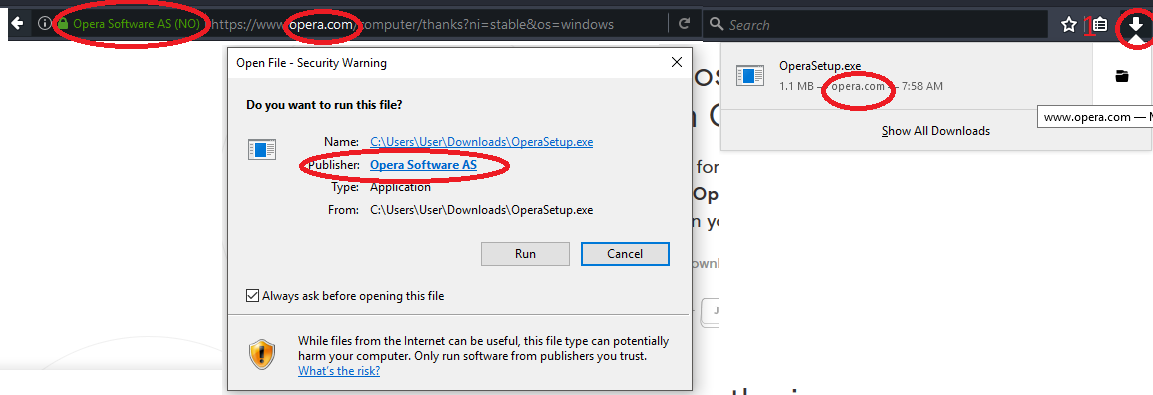
Firstly in the top right, downloads are usually symbolised by the down arrow. On Windows if you've lost the download they will be located in your computer in a folder called Downloads on the left hand side. When downloading this we also checked the URL (the long address bar at the top, to see if its the official site and if it is a Secure site the green padlock). Finally with the Open File warning the publisher of the file is listed correctly so we know it is official.
Searching with a Search Engine
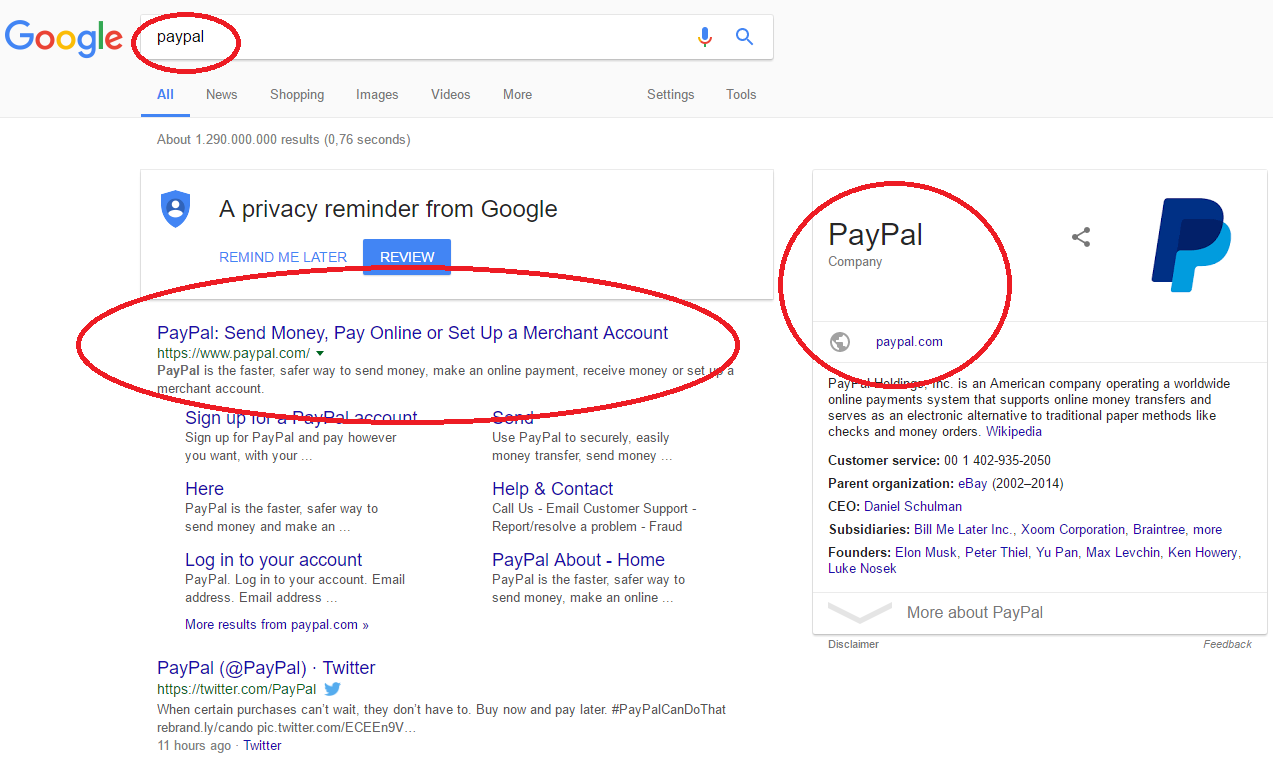
Searching online with a search engine (Google, Bing, Duckduckgo) the website in question. For example you want to find Paypals website. After entering the name into the search box you now have a list of results, on the right hand side is some information about the company including the website address. In the middle is the search results from our search "Paypal" we can confirm this by cross referencing the middle and right addresses.